Dashboard
Once you log in, you will land on the DeX Dashboard — your central command center for managing the entire software delivery lifecycle. This is where you monitor portfolio health, track project progress, and access AI-driven delivery intelligence — all from a single, unified view.
💡 Think of the Dashboard as your mission control: everything you need to oversee projects, documents, and delivery pipelines is available at a glance.
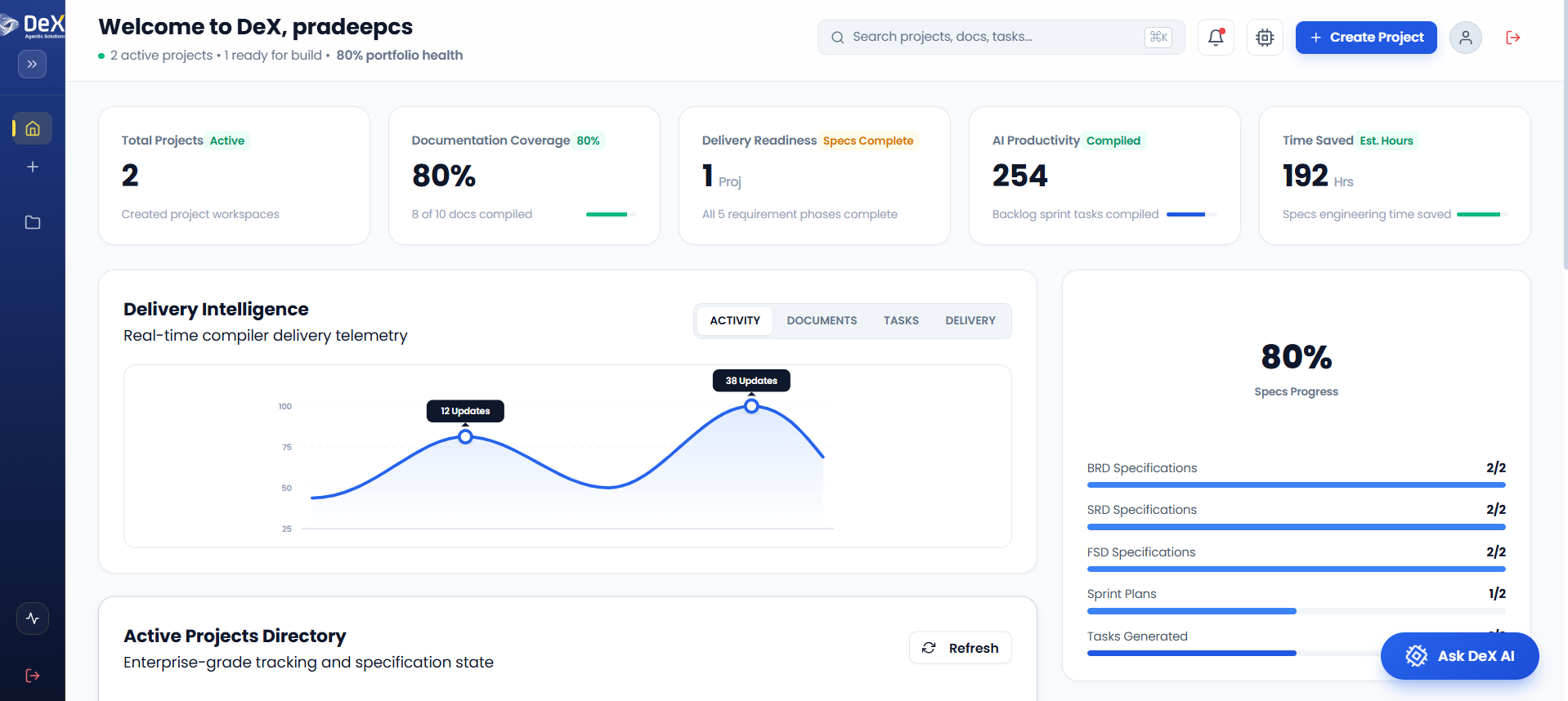
Dashboard Layout Overview
The Dashboard is organized into four primary interface zones:
| Zone | Description |
|---|---|
| Sidebar | Quick navigation to Dashboard and Projects |
| Main Cards | Key metrics — documentation coverage, delivery readiness, AI productivity, and time saved |
| Graph & Tabs | Real-time telemetry across Activity, Documents, Tasks, and Delivery |
| Specs Progress Panel | Status of BRD, SRD, FSD, sprint plans, and tasks |
Additionally, the Ask DeX AI button (bottom right) provides contextual assistance for queries and automation at any time.
4.1 Search Bar
The Search Bar allows you to instantly locate any project, document, or task across the platform.
How to use:
- Click on the Search Bar at the top of the Dashboard.
- Type in keywords related to the project name, document type, or task.
- Press Enter or click the search icon to display results.
🔍 Use specific terms like "BRD LoanMind" or "Sprint Plan Q2" for faster and more precise results.
4.2 Create Project
The Create Project button on the Dashboard is a quick-access shortcut to spin up a new workspace instantly without navigating through menus.
Steps:
- Click "Create Project" in the top navigation bar.
- Fill in the project details in the guided form that appears.
- Click Confirm to generate a new project workspace.
4.3 Notifications
Stay informed about system activity, project updates, and AI agent actions through the Notifications panel.
Steps:
- Click the bell icon (🔔) in the top navigation bar.
- A dropdown panel will display:
- System alerts
- Project status updates
- AI agent activity logs
📬 Notifications are updated in real time — check regularly during active sprints to stay current on document generation and build progress.
4.4 User Profile
Manage your personal account settings and preferences directly from the Dashboard.
Steps:
- Click the profile icon in the top-right corner of the navigation bar.
- From the dropdown, you can:
- Access Account Settings
- Update personal details (name, email, etc.)
- Manage platform preferences
4.5 Sign Out
DeX provides a secure sign-out option to end your session and protect your workspace.
Steps:
- Click the profile icon in the top-right corner.
- Select "Sign Out" from the dropdown menu.
- You will be redirected back to the Login Page.
🔒 Always sign out when using shared or public devices to protect your project data.
4.6 Active Projects Directory
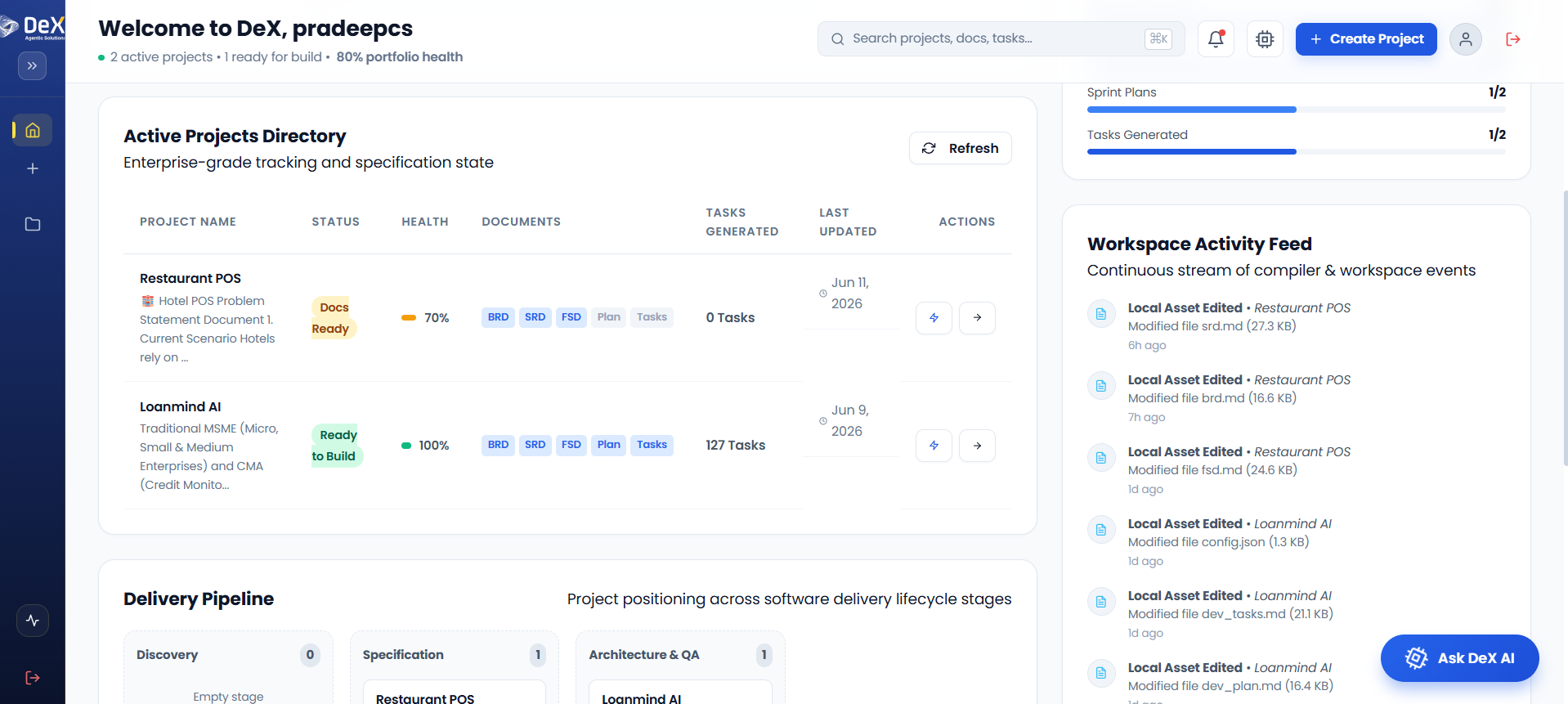
The Active Projects Directory gives you a consolidated view of all ongoing projects at a glance.
What you can see:
- Project Name — Click to open the project workspace
- Status — e.g.,
Docs Ready,Ready to Build - Health Percentage — Overall project readiness score
- Documents Compiled — Count of generated documents (BRD, SRD, FSD)
- Tasks Generated — Number of development tasks produced
- Last Updated Date — Timestamp of the most recent activity
How to use:
- Scroll through the directory to review all active projects.
- Click any project name to open its dedicated workspace.
- Use the status and health indicators to prioritize attention.
4.7 Workspace Activity Feed
The Workspace Activity Feed provides a real-time log of file edits and team actions across all active projects.
What you can track:
- Recent edits to documents: BRD, SRD, FSD, sprint plans, tasks
- Timestamps for each action
- Team member activity
How to use:
- Locate the Activity Feed panel on the Dashboard.
- Review the list of recent edits and their timestamps.
- Use this feed to audit team activity and track documentation progress.
🕐 Timestamps are displayed in your local timezone, making it easy to track activity across distributed teams.
4.8 Delivery Pipeline
The Delivery Pipeline panel provides a high-level view of sprint plan progress and task readiness, helping you assess whether a project is on track for delivery.
What you can monitor:
- Sprint plan generation progress
- Number of tasks generated vs. planned
- Readiness indicators for each phase
How to use:
- Locate the Delivery Pipeline panel on the Dashboard.
- Review sprint plan progress and task generation status.
- Use the color-coded indicators to identify blockers or completed phases.